
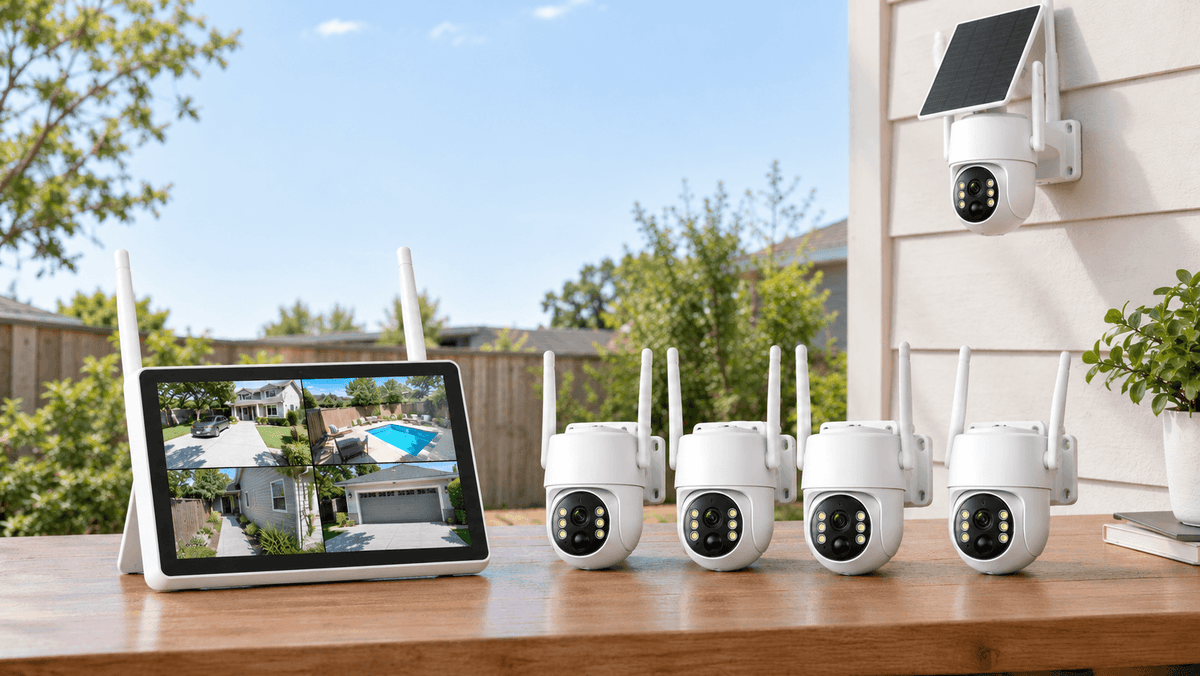
Your security needs can change over time. You may want to monitor a newly added garage, keep an eye on a side entrance, cover a larger backyard, or improve visibility around a driveway. If you already have a Network Video Recorder (NVR) security system, adding more cameras may be a practical way to expand your existing surveillance setup without replacing everything.
But can you add more cameras to an existing NVR security system? Yes, provided your NVR has available camera channels and the additional cameras are compatible with its hardware, wireless technology, and software.
In this guide, we'll explain how to add cameras to an NVR, what to check before buying additional security cameras, how to pair new devices, and how to troubleshoot common connection problems. Whether you're expanding a home security camera system or upgrading outdoor surveillance, these steps can help you plan a more reliable setup.
Can You Add More Cameras to an Existing NVR Security System?
In many cases, yes. However, the process depends on your NVR model and the type of cameras you want to add.
An NVR manages video streams from connected network cameras and stores footage for live viewing and playback. Some systems support additional compatible cameras, while others have a fixed number of channels.
Before expanding your system, check these three factors:
-
NVR channel capacity: Determine how many cameras your recorder supports and how many channels are currently occupied.
-
Camera compatibility: Confirm that the new cameras support your recorder's connection method, wireless protocol, and software.
-
Power and storage: Make sure the system can supply power to additional cameras where needed and has enough storage for your recording requirements.
For example, if an eight-channel NVR already has eight cameras connected, adding a network switch will not automatically create extra recording channels. You'll generally need a recorder with greater capacity or another supported recording solution.
Checking these specifications first can save you time and help you avoid buying incompatible equipment.
Step 1: Check Your NVR's Available Camera Channels
The first step in expanding an NVR security camera system is to identify its maximum channel capacity.
NVRs commonly come in configurations such as 4-channel, 8-channel, 16-channel, and larger systems. The actual capacity varies by model.
Suppose you have an eight-channel NVR with five cameras installed. If the recorder supports eight cameras in total, you may have room to add three more compatible devices.
However, don't rely on the number of physical ports alone. Some NVRs support cameras connected through a local network, while others have specific limits on direct connections, network cameras, or supported streams.
How to check your NVR:
-
Find the model number on the recorder or in its system settings.
-
Open the user manual or manufacturer's specifications.
-
Check the maximum number of supported cameras and available channels.
-
Review whether additional cameras require direct connections, a network connection, or wireless pairing.
-
Confirm that the recorder's firmware supports the intended camera configuration.
If all channels are occupied, consider whether upgrading to a higher-capacity NVR is more practical than replacing individual cameras.

Step 2: Make Sure the New Cameras Are Compatible
Camera compatibility is one of the most important considerations when adding security cameras to an existing NVR.
Not every IP camera, Wi-Fi camera, or wireless NVR camera can work with every recorder. Two devices may use similar technology but still differ in pairing methods, communication protocols, supported resolutions, or mobile apps.
Before purchasing an additional camera, check the following:
Connection type: Does your system use Wi-Fi pairing, Ethernet, Power over Ethernet (PoE), or a proprietary wireless connection?
Protocol support: If you're adding a third-party IP camera, check whether the NVR supports the camera's protocol, such as ONVIF, and the specific functions you need. ONVIF support alone does not guarantee that every feature will work.
Resolution and video format: Confirm that the recorder can handle the camera's resolution, encoding, and streaming requirements.
Software and firmware: Some camera systems only support specific camera models, apps, or firmware versions.
Power requirements: A PoE camera, a plug-in Wi-Fi camera, and a battery-powered camera require different power arrangements.
If you own a proprietary wireless NVR kit, start by looking for an officially supported add-on camera designed for that exact system. Don't assume a generic wireless camera can pair with it.
For Camcamp users, the safest approach is to check the compatibility information for your particular NVR kit before adding cameras. This helps ensure that the new device can connect properly and work with your existing recording setup.
Step 3: Choose the Right Location for Each Additional Camera
Once compatibility is confirmed, decide where the new cameras will provide the greatest security benefit.
Adding more cameras is most useful when each device covers an area that existing cameras cannot monitor clearly.
Here are some common locations to consider:
-
Front and side entrances: Monitor visitors and activity around entry points.
-
Driveways and garages: Improve visibility of parked vehicles, garage doors, and approaching traffic.
-
Backyards and patios: Monitor outdoor living spaces, gates, and garden access points.
-
Side yards and narrow passages: Cover potential blind spots between buildings and fences.
-
Sheds and detached buildings: Extend surveillance to storage areas and equipment locations.
Before mounting a camera, check its field of view, lighting conditions, and distance from the NVR or wireless access point. For wireless cameras, test the signal at the intended mounting position.
Avoid pointing cameras directly into strong light sources, and respect neighbors' privacy when choosing viewing angles.
A well-planned layout can improve coverage without unnecessary overlap.

Step 4: Connect or Pair the New Security Cameras
The exact installation process varies depending on your NVR system. Wired IP cameras and proprietary wireless NVR cameras do not necessarily follow the same steps.
For compatible wired IP cameras
-
Power down equipment if required by the manufacturer's installation instructions.
-
Connect the camera to a supported PoE port or to the network using the recommended connection method.
-
Ensure that the camera and NVR can communicate on the network.
-
Open the recorder's camera management menu.
-
Search for available devices or choose the manual-add option.
-
Enter the required camera credentials and connection details.
-
Save the configuration and check the live video feed.
For PoE systems, confirm that the port supplies power and that the camera meets the NVR's supported PoE requirements. Some network configurations require an external PoE switch or injector.
For compatible wireless NVR cameras
Wireless NVR kits often use a dedicated pairing process rather than the standard IP camera discovery method.
-
Power on the new compatible camera and NVR.
-
Place the camera near the recorder for initial pairing if the manual recommends it.
-
Open the camera or channel settings on the NVR.
-
Select the appropriate add-camera, pairing, or device-matching function.
-
Follow the on-screen instructions to pair the camera.
-
Wait for the camera to appear on the live-view screen.
-
Test the connection before mounting the camera in its final location.
Menu names vary between manufacturers and models. Always follow the instructions for your particular NVR rather than assuming every system uses the same procedure.

Step 5: Check Storage and Recording Settings
Adding cameras increases the amount of video your NVR may need to store. Even if the new devices connect successfully, insufficient storage can affect how much recorded footage remains available.
The amount of storage required depends on several factors:
-
Number of connected cameras
-
Video resolution and frame rate
-
Compression settings
-
Recording duration
-
Continuous recording versus motion-triggered recording
-
Retention requirements
For example, continuous recording generally consumes more storage than motion-triggered recording because the system records footage for longer periods.
After adding a camera, check that its recording schedule is enabled. Confirm that motion detection, notifications, and playback work as expected.
If you need longer video retention, review the NVR's supported hard-drive capacity and storage options. Don't assume that adding a separate hard drive or network device will expand recording capacity unless your model supports it.
For homes and small businesses, balancing image quality, recording schedules, and retention time can help make the most of an existing security system.
Step 6: Test Every Camera Before Finishing Installation
Before considering your NVR expansion complete, test every new camera individually.
Use this checklist:
-
Confirm that each new camera appears on the NVR's live-view screen.
-
Check that video is clear during both daytime and nighttime conditions.
-
Verify that motion detection works in the intended monitoring area.
-
Confirm that recordings can be saved and played back.
-
Test remote viewing through the supported app if your system offers it.
-
Check wireless signal strength at the final mounting location.
-
Confirm that the camera remains connected after a restart.
If you experience intermittent video, move the wireless camera closer to the recorder temporarily to determine whether distance or interference is contributing to the problem.
For wired cameras, inspect cables, connectors, network settings, and power delivery.
Testing before completing the installation helps identify problems while the camera is still easy to access.
Common Problems When Adding Cameras to an NVR
Even compatible cameras may require additional configuration. Here are some common issues and possible solutions.
The NVR cannot find the new camera.
Check that the camera is powered on, connected to the correct network, and supported by the recorder. For wireless NVR kits, repeat the manufacturer's pairing procedure.
The camera appears online but displays no video.
Verify the camera's credentials, stream settings, resolution, and protocol compatibility. For wired installations, inspect the Ethernet connection and confirm that the correct port is being used.
The wireless camera disconnects frequently.
Test the signal at the camera's actual mounting location. Walls, metal structures, distance, and interference can affect wireless performance.
The NVR has no available channels.
Review the recorder's specifications. A network switch can provide additional network connections, but it does not automatically increase the NVR's maximum supported camera count.
The new camera records no footage.
Check recording schedules, motion detection settings, storage status, and whether the camera channel has been enabled for recording.
If these steps don't resolve the issue, consult the manufacturer's manual or support team with your NVR model number and camera model.
Is It Better to Add Cameras or Upgrade Your NVR System?
Adding cameras to an existing NVR is often a practical choice when the recorder has spare channels and supports the additional devices.
However, an upgrade may make more sense if all channels are occupied, the recorder lacks the required compatibility, or you need more storage and advanced recording features.
When planning a security camera system upgrade, consider the total cost of additional cameras, installation, network equipment, storage, and future expansion.
If you're installing cameras in multiple outdoor locations, a compatible wireless NVR system may reduce the need to run video cables across the property. Remember that wireless video transmission does not necessarily mean a camera is completely wire-free; some cameras still require a power adapter or another power source.
The right choice depends on your property layout, recording needs, and the capabilities of your existing equipment.
FAQ
Can I add more cameras to an existing NVR?
Yes, if the NVR has available channels and supports the additional cameras. Check channel capacity, connection type, camera compatibility, and storage before purchasing new devices.
Can I mix different brands of cameras on one NVR?
Sometimes. Certain NVRs support compatible third-party IP cameras through standards such as ONVIF, but compatibility and available features vary. Proprietary wireless NVR kits may require specific matching cameras.
Can I add wireless cameras to a wired NVR?
It depends on the recorder and camera. Some systems accept network-connected wireless cameras, while others only support specified wired or proprietary wireless devices. Verify compatibility before buying.
Will adding more cameras reduce NVR recording time?
It can. More cameras generally generate more video data, which may reduce retention time when storage capacity stays the same. Recording schedules, resolution, compression, and motion-triggered recording all affect storage use.
What should I do if my NVR has no free channels?
Check whether the manufacturer supports a higher-capacity recorder or another recording solution. Adding a switch alone will not increase the recorder's supported channel count.

Final Thoughts: Expand Your Security Coverage the Smart Way
Learning how to add more cameras to an existing NVR security system starts with three essentials: checking channel capacity, confirming camera compatibility, and planning your recording and power requirements.
Once these details are confirmed, the installation process becomes easier to manage. Add cameras strategically, test each connection, and verify that live viewing, motion detection, and recording work correctly.
If you're planning to expand your home or business surveillance, explore Camcamp security camera systems and choose a configuration that fits your property's layout and long-term monitoring needs. The goal isn't simply to install more cameras—it's to create a reliable security system that helps you monitor the areas that matter most.

Leave a comment
This site is protected by hCaptcha and the hCaptcha Privacy Policy and Terms of Service apply.