
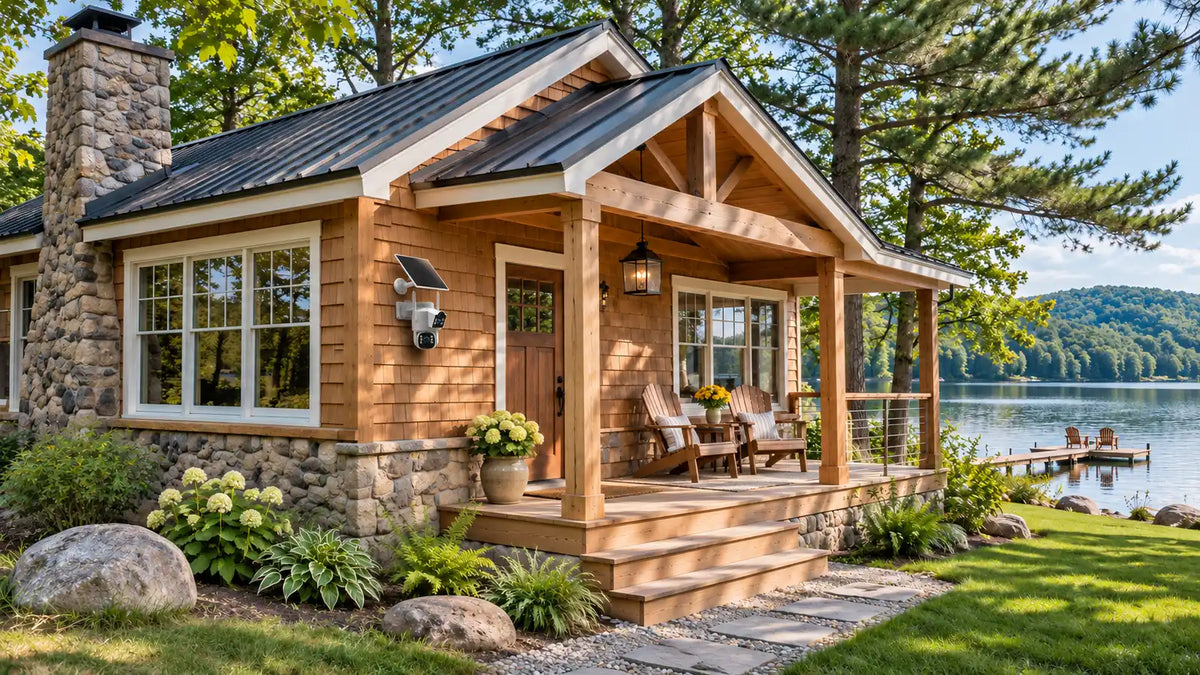
To secure a vacation home remotely, cover the routes people actually use, choose a camera connection that works at the property, and test alerts and playback from away before you leave. A front entrance and driveway are good starting points. A side door or detached garage deserves a separate view if the first two cameras cannot show it clearly.
For a cabin without reliable home internet, a solar 4G LTE camera such as the Camcamp SC61 can provide remote access where compatible cellular service is available. Plan for an active data plan and enough sun for charging. For a property with reliable internet and several entrances, a recorder-based system may be a better fit for managing several views together.
1. Decide what you need to see when you are away
Make a short list of the situations you want to verify. A delivery at the porch, a caretaker arriving early and a vehicle turning into the driveway need different details in the frame. An overview helps show what happened first. A closer door view helps show what happened at the threshold.

Walk the property as a visitor would. Look at where people park, where paths split, and which door they use after dark. Start with the primary entrance, then cover a second entrance if it is routinely used. A large deck, detached garage or separate gate deserves its own camera when it serves a purpose the main view cannot cover. Aim views within your property and avoid windows and areas where guests expect privacy.
| Area | What to verify in a test clip |
|---|---|
| Driveway or gate | The vehicle approach and where someone turns toward the house. |
| Front porch | The door, steps and usual package drop-off spot. |
| Side entrance | The threshold and enough of the approach to follow the event. |
| Detached garage | The specific door or route you want to check remotely. |
2. Choose Wi-Fi or 4G LTE based on the mounting spot
Test the connection at the exact place where each device will sit. A strong signal indoors can disappear outside a wall or beyond a rise in the driveway. Test with the camera itself and load a fresh live view. If you need alerts and playback, test those separately. A live image by itself only proves one part of the setup works.
Choose Wi-Fi when the property has reliable internet and coverage where the camera will be mounted. If several views share a recorder, check the individual camera connections and the recorder's internet connection. Those links serve different purposes, and remote access can fail even while the recorder still has a local view.
Choose 4G LTE when home Wi-Fi is unavailable or unreliable at the target location and compatible cellular coverage is usable. The SC61 uses cellular data for remote access. Check the plan's terms and watch usage during the first week, especially if you routinely open live view or download clips. Evaluate a gate or outbuilding on its own merits, since its reception can differ from that of the main house.

3. Test solar charging and weather exposure
Look for a spot where the panel can receive direct sun without forcing the camera to point away from the area you want to see. Check shade at different times of day. A roof overhang that helps shelter the camera may shade the panel for much of the day. Seasonal changes matter too. A clear view of the sky in autumn can become shaded once trees leaf out.
Secure the mount and follow the supplied installation guidance for positioning the panel and connecting its charging lead. Start with a charged battery, then observe whether it stays adequately charged over several normal days. Frequent motion events and long live-view sessions can increase demand. If the battery keeps trending downward, check sun exposure, charging connections and how often the camera is working before relying on it for a long absence.
4. Tune alerts around events you can act on
After installing the camera, ask someone to walk their normal route, bring a delivery to the door and approach from the driveway. Check when the event begins, what the clip shows and whether the notification reaches the correct phone. If the camera offers detection zones, start with the area you need and exclude an adjacent road or moving foliage if possible. Review real clips before lowering sensitivity.

Repeat the test at dusk or after dark. A porch lamp may help the doorway while casting deep shadows on the steps. A nearby pale wall can also reflect infrared light back toward the lens. Compare two angles or adjust the light if your view is washed out. Keep footage of a normal test so you can compare it with later captures after weather or seasonal changes.
5. Verify storage and playback separately from live view
Decide how you want to retrieve important clips. Depending on the model, local storage can keep footage on a camera or recorder, while a supported cloud plan can provide off-site access to saved events. Check the recording mode, storage status, retention and any subscription requirements. If you expect local recordings to continue during a network outage, test that behavior on your setup before assuming they will be available.
Trigger a new event and try to play it back on your phone. Then export a short test clip so you know where the file goes. Reviewing a live stream only shows what is happening now. Playback confirms the event was recorded, and an exported copy gives you a file you can keep separately.
6. Test from off-site and plan for an offline alert

Before leaving, switch your phone off the property's Wi-Fi and confirm live view, motion notifications and playback over mobile data. If someone else will help manage the property, grant only the access they need through the supported sharing process. Keep the camera app and firmware current, and protect the account with a unique password and multifactor authentication where available.
Decide what happens if the camera stops responding. A nearby caretaker can check for a power outage, a disconnected solar lead or equipment damage. If you receive an alert that raises an immediate concern, avoid asking someone to confront whoever is on site. Use the footage to assess the situation and contact the appropriate local help. Continue the usual physical checks for locks, doors and windows before leaving.
FAQ
Can I watch a vacation home security camera without Wi-Fi?
Yes. A 4G LTE model such as the Camcamp SC61 uses mobile data at the camera. You need compatible coverage and an active plan, and the camera still needs power. Test live view from the exact mount before leaving.
How many outdoor cameras does a vacation home need?
Start with the main entrance and the primary approach, then add a view for a separate entrance, garage or gate if you need it. Use the test footage to decide whether existing views show enough detail.
Will a solar security camera charge under a porch roof?
Charging depends on the sunlight reaching the panel. A sheltered camera can work with a panel mounted where it gets useful sun, provided the installation follows the model's instructions. Check battery trends under normal use.
What should I test before leaving the property?
Check the battery and connection, trigger an alert in daylight and after dark, and confirm remote live view and recent playback from mobile data. Verify that the app is using the account you will have access to while traveling.


Leave a comment
This site is protected by hCaptcha and the hCaptcha Privacy Policy and Terms of Service apply.